OAuth 2.0 in Entra ID · Part 2 of 7
Authorization code flow with PKCE
The authorization code flow with PKCE is how an app used by a real person gets a badge from Entra ID safely, even when the app cannot keep a secret. It is the flow Microsoft recommends for every web, single-page, mobile and desktop app that signs people in.
Part 1 explained the visitor badge idea. This part follows one badge from start to finish, using a small app you can run yourself: the Contoso Employee Directory, where an employee searches for a colleague and sees their job title, manager and team.
By the end you will have:
- understood the flow in plain words, then step by step;
- made the design choices an identity engineer makes before building it;
- set up the Employee Directory app in your own Entra ID tenant;
- watched the raw flow in PowerShell, read the tokens it returns, and seen how refresh tokens keep the app connected until an administrator takes that access away.
In plain words: a cloakroom ticket with a secret half
The flow gets its name from a short-lived code that Entra ID hands out before the real badge. Think of a cloakroom at a busy event.
- You hand in your coat and receive a ticket. The ticket is not the coat; it only proves you may collect it.
- Later, you swap the ticket at the counter for your coat.
In OAuth, the authorization code is the ticket and the access token is the coat. Entra ID gives the app the ticket first, through the browser, then the app swaps it for the token directly with Entra ID.
The weakness: tickets can be picked up
The ticket travels through the browser address bar, where another program could spot it. If a stranger grabs the ticket first, they could collect your coat.
The fix: PKCE, the secret half
PKCE (Proof Key for Code Exchange, pronounced “pixie”) closes that gap. Before asking for a ticket, the app makes up a random secret and keeps it to itself. It shows the cloakroom only a fingerprint of that secret.
When the app swaps the ticket, it must show the original secret. The counter checks it matches the fingerprint it saw earlier. A stranger holding only the ticket has no secret, so the swap fails.
| Plain words | Technical name | Who holds it |
|---|---|---|
| Cloakroom ticket | Authorization code | Travels through the browser, valid for minutes, single use |
| The coat | Access token | The app, for about an hour |
| Secret half | Code verifier | Only the app, never sent until the swap |
| Fingerprint of the secret | Code challenge (SHA-256 hash) | Sent to Entra ID at the start |
The Contoso example: an employee directory
Contoso’s intranet has a Find a colleague page. Divya, an IAM Analyst, types “Ravi” and sees Ravi’s name and email. In org chart mode she also sees his job title, his manager and his team.
The page stores no passwords and keeps no copy of the directory. Each time, it asks Entra ID for permission to read the directory on Divya’s behalf, then calls Microsoft Graph with the badge it receives.
| In the story | OAuth role | In the lab |
|---|---|---|
| Divya, the employee | Resource owner | A test user in your tenant |
| Employee Directory page | Client (public, browser app) | One HTML file using MSAL.js |
| Entra ID | Authorization server | Your tenant’s login.microsoftonline.com endpoint |
| Company directory | Resource server | Microsoft Graph |
Two modes, two kinds of consent
The app is built in two stages, because each one teaches a different kind of consent.
| Mode | Scopes requested | What Divya sees | Who can consent |
|---|---|---|---|
| Basic | User.Read, User.ReadBasic.All | Names and emails | Divya herself |
| Org chart | adds User.Read.All | Job title, department, manager, team | An administrator only |
When Divya switches to Org chart mode before an admin has approved it, Entra ID shows her a Need admin approval screen. Once an admin grants consent for the tenant, the same switch just works.
The flow, step by step
When Divya clicks Connect to Directory, ten steps run in about two seconds. Only step 4 needs her, and her password goes only to Entra ID.
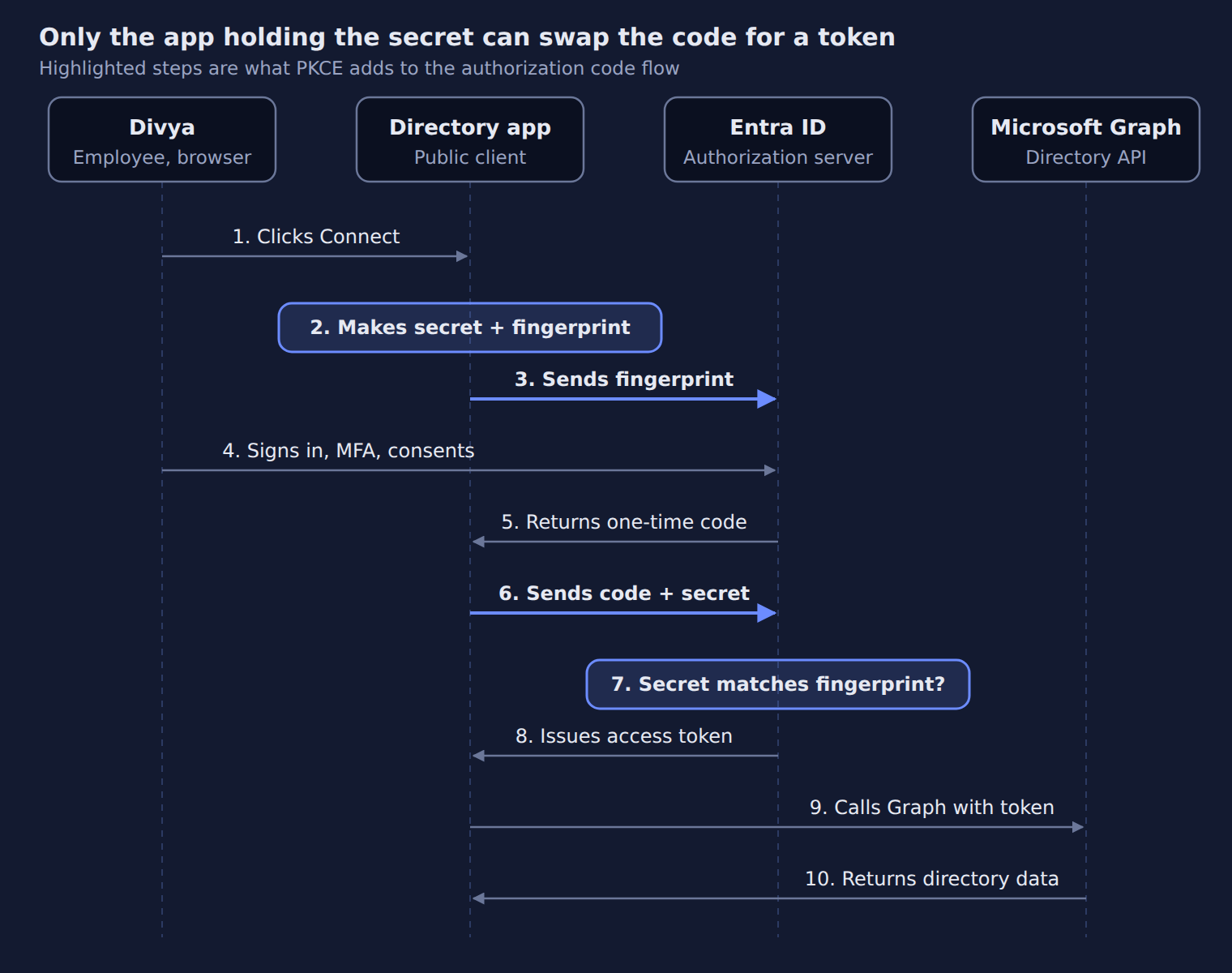
- Clicks Connect. Divya asks the Directory app to read the company directory for her.
- Makes secret + fingerprint. The app creates a random secret (code verifier) and hashes it into a fingerprint (code challenge). The secret never leaves the app yet.
- Sends fingerprint. The app sends Divya’s browser to Entra ID with its client ID, the scopes it wants, its redirect address, a random
statevalue and the fingerprint. - Signs in, MFA, consents. Entra ID checks Divya’s password, MFA and Conditional Access, then asks her to approve the scopes.
- Returns one-time code. Entra ID sends the browser back to the app’s redirect address with a short-lived code and the same
state. - Sends code + secret. The app posts the code and the original secret directly to Entra ID’s token endpoint.
- Secret matches fingerprint? Entra ID hashes the secret and compares it with the fingerprint from step 3. No match, no token.
- Issues access token. Entra ID returns an access token for Microsoft Graph, valid for about an hour.
- Calls Graph with token. The app searches the directory, showing the token as its badge.
- Returns directory data. Graph checks the badge and returns only what Divya herself is allowed to see.
Why PKCE matters: the attack it stops
PKCE stops a stolen code from becoming a stolen badge. Without it, anyone who grabs the code during the redirect could swap it for an access token.
The risk is real for apps that cannot hide a secret. A browser page or a mobile app ships its code to every user, so a “client secret” inside it is not secret at all. Before PKCE, a malicious app on the same phone could register the same redirect address, catch the code and redeem it.
With PKCE, the code is useless on its own:
- The attacker sees the code and the challenge (the fingerprint), but never the verifier (the secret).
- A SHA-256 fingerprint cannot be reversed to recover the secret.
- Entra ID refuses to swap a code unless the verifier matches the challenge sent at the start.
PKCE began as a fix for mobile apps. It is now the recommended default for every app using the authorization code flow, including web apps that also hold a client secret. Microsoft’s MSAL libraries add it automatically.
Design decisions before you build
Five decisions shape the whole implementation. Making them first avoids most of the errors in the troubleshooting section.
1. Which flow?
A person is present in a browser and the app acts for them, so the answer is the authorization code flow with PKCE.
| Option | Why not here |
|---|---|
| Client credentials | App-only access with no user: the app could read every user’s data, and nobody signs in |
| Device code | Meant for devices with no browser or keyboard |
| Implicit flow | Retired: tokens were returned in the URL with no code swap and no PKCE |
| Password (ROPC) | The app collects the password itself, which skips MFA and Conditional Access |
2. Which client type and platform?
Entra ID decides how to treat an app from which platform its redirect URI is registered under. This single setting decides whether a secret is required.
| Platform in Entra ID | Client type | Token swap needs | Used in this lab for |
|---|---|---|---|
| Single-page application | Public, browser only | PKCE, from a browser (cross-origin request) | Employee Directory page |
| Mobile and desktop applications | Public | PKCE only | PowerShell walkthrough |
| Web | Confidential | PKCE plus a client secret or certificate | A server-side app, e.g. Next.js |
One app registration can hold several platforms, as this lab does. Each redirect URI must stay unique, as the troubleshooting section shows.
3. Which scopes?
Ask for the least the app needs. Basic mode needs only User.Read and User.ReadBasic.All, which any user can consent to. Org chart mode adds User.Read.All, which needs admin consent, so it is requested only when the user switches mode.
4. Who consents?
Let users consent to low-risk scopes themselves. Keep tenant-wide or sensitive scopes behind admin consent, and consider the admin consent workflow so users can request approval instead of hitting a dead end.
5. Where do tokens live?
The directory page keeps tokens in the browser tab’s session storage, which clears when the tab closes. Access tokens last about an hour. A server-side app would keep tokens on the server instead and never send them to the browser.
Quick setup: the Employee Directory in your tenant
The whole lab runs in about 20 minutes with an Entra ID tenant (P1 or P2 trial is enough, no Microsoft 365 licence needed), PowerShell 7 and Node.js.
Lab files: index.html · New-DirectoryTestUsers.ps1 · users.csv · Invoke-AuthCodeFlow.ps1
Step 1. Register the app
- Entra admin center → App registrations → New registration. Name it
Contoso Employee Directory, choose Accounts in this organizational directory only. - Authentication → Add a platform → Single-page application. Redirect URI:
http://localhost:3000. - API permissions → Microsoft Graph → Delegated: add
User.ReadandUser.ReadBasic.All. Do not grant admin consent yet. - Note the Application (client) ID and Directory (tenant) ID from the Overview page.
Step 2. Create test users with a reporting line
Run the provided New-DirectoryTestUsers.ps1 with its users.csv. It creates 10 users with job titles, departments and managers, and saves their passwords to created-users.csv for the lab.
Install-Module Microsoft.Graph -Scope CurrentUser
.\New-DirectoryTestUsers.ps1            # create users and managers
.\New-DirectoryTestUsers.ps1 -Remove    # clean up after the lab
The CSV builds a four-level chart: CEO → Head of IT → IAM Team Lead (Ravi) → IAM Analyst (Divya).
Step 3. Configure and run the page
- Download
index.htmland put it in its own folder, for exampleC:\Labs\EmpDirectory. - Near the bottom of the file, set
clientIdandtenantIdin theCONFIGblock. - Start a local web server in that folder and open
http://localhost:3000:
npx serve -l 3000 .
Open the file through the server, not by double-clicking it: a file:// page cannot receive the redirect from Entra ID.
Step 4. Try the four scenarios
| Scenario | Sign in as | What you should see |
|---|---|---|
| Basic search | Divya, in a private window | Consent screen, then names and emails |
| Org chart without approval | Divya | Need admin approval; the page falls back to Basic |
| Org chart after approval | Admin grants consent for User.Read.All, then Divya | Ravi with Vikram above and Divya below |
| Guest user | A B2B guest | 403 on search: delegated access follows the user’s own rights |
The page’s What just happened panel numbers every step as it runs, and The access token panel decodes the badge. Both are ready-made screenshots for your notes.
See the raw flow: PowerShell, step by step
MSAL hides the flow inside a library. The Invoke-AuthCodeFlow.ps1 script does every step by hand, so you can see the code, the verifier and the tokens yourself.
One extra platform
In the same app registration, go to Authentication → Add a platform → Mobile and desktop applications and add the custom redirect URI http://localhost:8400/callback. Then run:
.\Invoke-AuthCodeFlow.ps1 -TenantId <tenant-id> -ClientId <client-id>
What each step prints
| Step | What happens | What you see |
|---|---|---|
| 1. Create the secret | Random code_verifier, its SHA-256 code_challenge, and a random state | The challenge in full, the verifier cut short |
| 2. Authorize | Browser opens Entra ID’s /authorize with client ID, scopes, redirect URI, state and challenge | The full URL |
| 3. Catch the code | Divya signs in; Entra ID redirects to localhost:8400/callback?code=…&state=… | The code, and a check that state matches |
| 4. Swap the code | Script posts the code and the verifier to /token | Which tokens came back |
| 5. Read the badge | Decodes the access token | aud, scp, upn, exp |
| 6. Use the badge | Calls Graph /me and searches for “ravi” | Divya’s name and the search results |
The heart of PKCE is three lines in step 1:
$verifier  = New-RandomString 64
$hash      = [Security.Cryptography.SHA256]::Create().ComputeHash([Text.Encoding]::ASCII.GetBytes($verifier))
$challenge = [Convert]::ToBase64String($hash).TrimEnd('=').Replace('+','-').Replace('/','_')
The challenge goes out in step 2. The verifier stays in the script until step 4, where Entra ID hashes it again and compares.
The request MSAL builds for you
The directory page sends the same request, with a few extras added by MSAL:
| Part of the URL | Group | Meaning |
|---|---|---|
client_id, response_type=code, redirect_uri, scope, state | OAuth | Who is asking, for what, and where to send the code |
code_challenge, code_challenge_method=S256 | PKCE | The fingerprint of the secret |
openid profile offline_access, nonce | OIDC | Added by MSAL: an ID token, a refresh token and replay protection |
response_mode=fragment, prompt=select_account | Behaviour | Code returns after #; always show the account picker |
client-request-id, client_info, x-client-SKU, x-client-VER | Microsoft extras | Correlation and library details, not part of the standard |
What the tokens taught us
Running the script twice, once as plain OAuth and once with -Oidc, shows exactly what each scope adds.
| Run 1: plain OAuth | Run 2: with -Oidc | |
|---|---|---|
| Requested | User.Read User.ReadBasic.All | adds openid profile offline_access |
| Access token | Yes, for Microsoft Graph | Yes, for Microsoft Graph |
| ID token | No | Yes, for the app: who signed in |
| Refresh token | No | Yes, renews access without a new sign-in |
Four lessons from the output
- Requested scopes are not granted scopes. The access token lists every Graph permission already consented for this app and user, not just the ones asked for this time. That is why
openid profile emailappeared in Run 1 even without asking. - Consent is per user unless an admin grants it for everyone.
User.Read.Allappeared for the admin but not for a test user, because only the admin had consented. offline_accessis not a permission on the token. Its only effect is that a refresh token comes back.- Token lifetimes vary on purpose. Entra ID randomizes access token lifetime, typically 60 to 90 minutes, so tokens issued together do not all expire at once.
Reading the badge
Paste the access token into jwt.ms, or read the directory page’s token panel.
| Claim | Example value | Meaning |
|---|---|---|
aud | 00000003-0000-0000-c000-000000000000 | The badge is for Microsoft Graph, not for the app |
scp | User.Read User.ReadBasic.All | What the badge allows |
upn | divya.pillai@contoso.onmicrosoft.com | Whose behalf the app acts on |
appid | The app’s client ID | Which app holds the badge |
exp | About an hour after issue | When the badge stops working |
The app itself should never trust the access token as proof of who signed in. That is the ID token’s job, which is why Microsoft libraries always request OIDC alongside OAuth.
Staying connected: refresh tokens
An access token lasts about an hour. A refresh token lets the app get a new one without asking Divya to sign in again, for as long as the refresh token stays valid.
In the cloakroom story, the refresh token is a renewal slip. When the coat ticket expires, the app hands the slip to the counter and receives a fresh badge, plus a fresh slip. Divya is not disturbed.
When you get one
Only when the app asks for offline_access. That is why Run 1 returned no refresh token and Run 2 did. MSAL adds offline_access automatically, so the Employee Directory page always has one.
How the app uses it
- Directory page. Before every Graph call, MSAL first reuses the cached access token. When that has expired, it silently swaps the refresh token for a new one. The trace panel shows Got a fresh access token silently, using the refresh token.
- PowerShell. After running the script with
-Oidc, swap the refresh token by hand:
$new = Invoke-RestMethod -Method Post -Uri "https://login.microsoftonline.com/<tenant-id>/oauth2/v2.0/token" -Body @{
  client_id     = "<client-id>"
  grant_type    = "refresh_token"
  refresh_token = $EntraToken.refresh_token
  scope         = "User.Read User.ReadBasic.All offline_access"
}
$new.access_token   # a brand-new badge, no sign-in
$new.refresh_token  # a new slip: always keep the newest one
No password, no browser and no PKCE this time: the refresh token itself is the proof.
How long it lasts
| Token | Typical lifetime | Notes |
|---|---|---|
| Access token | 60 to 90 minutes | Randomized; cannot be cancelled early by most APIs |
| Refresh token, single-page app | 24 hours | Browser apps must sign in again daily |
| Refresh token, other apps | Up to 90 days | Renewed each time it is used |
Conditional Access can shorten this, for example a sign-in frequency policy that asks for a fresh sign-in every 8 hours.
Taking access away
This is the part administrators care about most. Refresh tokens stop working when:
- an admin revokes the user’s sessions (Entra admin center → the user → Revoke sessions, or
Revoke-MgUserSignInSession -UserId <user-id>); - the user’s password is reset or the account is disabled;
- the consent for the app is removed.
Access tokens already issued keep working until they expire, so there can be a delay of up to an hour. Microsoft Graph supports Continuous Access Evaluation, which cuts that short for critical events such as a disabled account.
Try it: run the PowerShell refresh once, revoke Divya’s sessions, then run it again. The second swap fails with invalid_grant.
Troubleshooting: the errors we actually hit
Most errors in this flow come from one rule: Entra ID decides the client type from the platform of the redirect URI that matched. For localhost, Entra ID also ignores the port when matching.
| Error or symptom | Cause | Fix |
|---|---|---|
AADSTS9002327: tokens for a Single-Page Application may only be redeemed via cross-origin requests | PowerShell sent http://localhost:8400; port ignored, so it matched the SPA URI http://localhost:3000 | Use a different path for the desktop redirect: http://localhost:8400/callback |
AADSTS7000218: request must contain client_assertion or client_secret | The redirect URI sits under the Web platform, which is confidential | Move it to Mobile and desktop applications; if it persists, set Allow public client flows to Yes |
AADSTS50011: redirect URI mismatch | The URI sent does not match any registered one exactly | Copy the exact URI, including path, into the right platform |
| Need admin approval | The app asked for User.Read.All, which users cannot consent to | An admin grants consent, or the user requests it through the admin consent workflow |
AADSTS65001: consent missing | The user or admin has not consented to a scope | Sign in interactively once, or grant admin consent |
invalid_grant on the token swap | The code was used twice, expired, or the verifier does not match | Start the flow again: codes are single-use and last minutes |
Graph returns 403 | The token lacks the scope, or the user lacks the rights | Check scp in the token; remember the app can do no more than the user |
| Page never returns from sign-in | Opened as file:// instead of through a web server | Run npx serve -l 3000 . and use http://localhost:3000 |
Security checklist
- PKCE with
S256on every authorization code request, including web apps with a secret. - A random
statesent and checked on return, to stop cross-site request forgery. - Exact redirect URIs only, each under the right platform, no wildcards.
- Least-privilege scopes; sensitive ones behind admin consent.
- Secrets only in confidential (Web) apps, stored in a vault or environment variables, never in browser code.
- Tokens kept in memory or session storage in browser apps, on the server in web apps.
- Conditional Access and MFA left to Entra ID: the app never sees the password.
- Test users and their passwords file removed after the lab.
Remember
- The code is a cloakroom ticket; the access token is the coat.
- PKCE makes a stolen ticket useless: only the app holding the secret can swap it.
- The platform of the redirect URI decides whether Entra ID wants a secret.
- The app’s real access is the overlap of its scopes and the user’s own rights.
- A refresh token renews the badge quietly, until an administrator revokes it.
Next in this series
Everything in this part had a person present: Divya signed in, consented and stayed connected through a refresh token. The next part removes the person. Client credentials is the flow for background jobs and services that run on their own, such as a nightly sync that reads the whole directory, and it shows why app-only access needs much tighter control.