OAuth 2.0 in Entra ID · Part 3 of 7
Client credentials flow: when an app works on its own
The client credentials flow is how an app gets a badge from Entra ID for itself, with no person signing in. It is the flow behind scheduled jobs, background services, sync tools and any app that talks to another app.
In Part 2, the Employee Directory app always acted for Divya, and could never do more than she could. This part removes Divya. The app signs in with its own credential and its own permissions, which makes it simpler to run and far more powerful, so it needs more care.
By the end you will have:
- understood the flow in plain words and step by step;
- turned a real business requirement into a design;
- registered an app with a client secret and application permissions;
- run a nightly-style PowerShell job that reads the whole directory and reports problems.
In plain words: the night-shift robot with its own staff card
Picture Contoso’s office at 2 a.m. Nobody is in. A cleaning robot still needs to get into the records room to do its rounds.
No employee is there to vouch for it, so it cannot borrow anyone’s visitor badge. Instead, the facilities manager gave the robot its own staff card when it was installed, and decided once which rooms that card opens.
Each night the robot goes to the security desk, shows its card and its PIN, and receives a badge for the night. Nobody is asked for permission at that moment, because permission was granted in advance.
| In the story | OAuth term | In Entra ID |
|---|---|---|
| The cleaning robot | Client (confidential app) | An App registration for the job |
| Its staff card number | Client ID | Application (client) ID |
| Its PIN | Client secret | A secret created under Certificates & secrets |
| Rooms the manager approved | Application permissions | User.Read.All, AuditLog.Read.All |
| The facilities manager | Admin consent | An administrator clicking Grant admin consent |
| The night’s badge | Access token (app-only) | A token with roles and no user |
The important difference from Part 2: there is no person whose rights limit the badge. If the manager approved “read every user”, the robot can read every user.
The business requirement: Contoso’s directory hygiene job
The Employee Directory from Part 2 is only as good as the data behind it. A missing manager breaks the org chart; an account nobody uses is an open door. Contoso’s IAM team writes down what they need:
Every night, without anyone signing in, check every account in the directory and give us a report of the ones that need attention. Read only: the job must never change anything.
The team agrees on four rules:
| Rule | Applies to | Why it matters |
|---|---|---|
| No job title | Enabled employees (members) | The directory shows a blank title |
| No department | Enabled employees | Search and org chart grouping break |
| No manager | Enabled employees | The reporting line disappears; approvals have nowhere to go |
| No sign-in for 90+ days, or never | All enabled accounts, including guests | Stale accounts are a common way in for attackers |
The output is a CSV file the team reviews each morning. Nobody is present when the job runs, so the authorization code flow from Part 2 cannot work: there is no one to sign in or consent. This is exactly the job the client credentials flow exists for.
The flow, step by step
The flow has one step done once by an administrator, then the same short sequence every time the job runs.
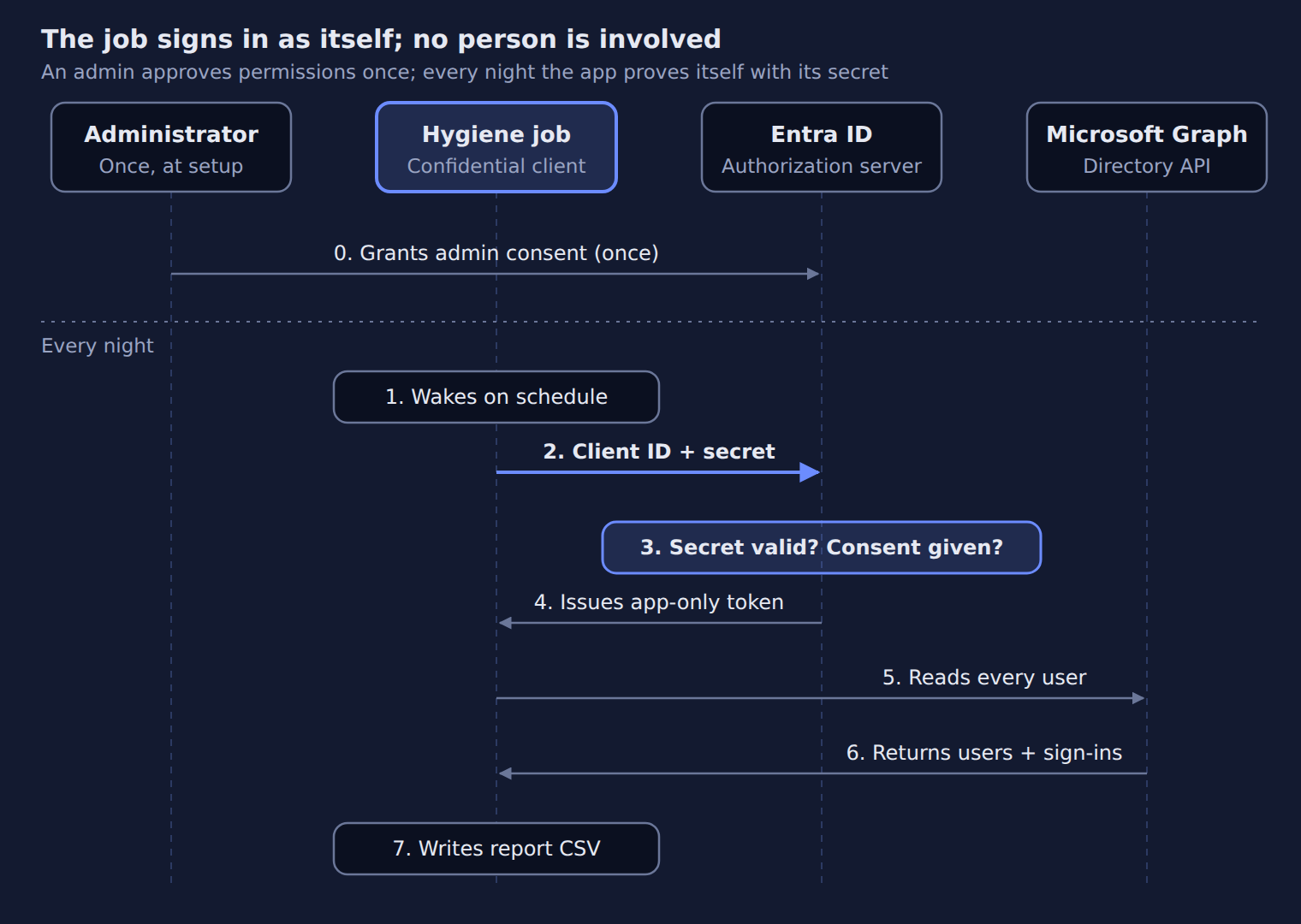
- Grants admin consent (once). An administrator approves the job’s application permissions. This is the only human step, and it happens before the job ever runs.
- Wakes on schedule. Task Scheduler, a cron job or Azure Automation starts the script at night.
- Client ID + secret. The job posts its client ID, its secret and the scope
https://graph.microsoft.com/.defaultto Entra ID’s token endpoint. - Secret valid? Consent given? Entra ID checks the secret has not expired and looks up which permissions the admin granted.
- Issues app-only token. Entra ID returns an access token for Microsoft Graph that lists those permissions as
roles. There is no user in it. - Reads every user. The job calls Graph for all users, their managers and their last sign-in dates.
- Returns users + sign-ins. Graph checks the
rolesin the token and returns the whole directory. - Writes report CSV. The job applies the four rules and saves the findings for the IAM team.
Compared with Part 2, there is no browser, no sign-in page, no consent screen, no code and no PKCE. The secret does all the proving.
How it differs from the authorization code flow
Both flows end with an access token for Microsoft Graph, but almost everything else changes.
| Part 2: authorization code + PKCE | Part 3: client credentials | |
|---|---|---|
| Who is present | A person, in a browser | Nobody |
| Who proves identity | The user (password, MFA) | The app (secret or certificate) |
| Permission type | Delegated | Application |
| Who consents | The user, or an admin for sensitive scopes | Always an admin |
| Scopes in the request | Listed one by one | .default: everything the admin granted |
| Claim in the token | scp (scopes) | roles (app roles) |
| User in the token | Yes (upn, oid of the user) | No |
| Refresh token | With offline_access | Never: the app just asks again |
| Real access | App scopes and the user’s rights | App permissions only, tenant-wide |
| Browser, redirect URI | Required | Not used |
The Real access row is the one to remember. A delegated token is capped by the user. An app-only token is capped only by what the admin approved.
Design decisions before you build
1. A separate app registration
Create a new app, Contoso Directory Hygiene Job. Never add application permissions to the Employee Directory app: a browser app that anyone can open must not carry tenant-wide rights. One job, one app, one set of permissions.
2. Application permissions, read-only
| Permission (Application) | What the job uses it for |
|---|---|
User.Read.All | Read every user, with job title, department and manager |
AuditLog.Read.All | Read each user’s last sign-in date (signInActivity, needs Entra ID P1 or P2) |
No write permission is granted, so even a leaked credential cannot change the directory. Resist adding User.ReadWrite.All “for later”.
3. Admin consent
Application permissions always need an administrator to click Grant admin consent. Until then, the token comes back with no roles and every Graph call fails with 403.
4. Which credential?
The app proves who it is with a credential. This lab uses a client secret because it is the quickest to set up and easiest to follow.
| Credential | How it works | Use it when |
|---|---|---|
| Client secret | A generated password sent with the token request | Labs and quick tests; production only with short expiry and a vault |
| Certificate | The app signs a short-lived assertion with a private key that never leaves the machine | Most production jobs on servers you manage |
| Managed identity | Azure provides and rotates the credential; there is nothing to store | Jobs running in Azure (Automation, Functions, VMs) |
A secret is only as safe as the place it is stored. Treat it like an admin password: never in a script, never in source control, never in an email.
5. The .default scope
The token request always asks for https://graph.microsoft.com/.default. It means “everything the admin granted this app on Microsoft Graph”. You cannot request permissions one by one in this flow, because there is no user to consent at request time.
6. No refresh token
The job asks for a new token whenever it needs one. Its credential is always at hand, so a refresh token would add risk and no value.
Quick setup in Entra ID
The setup takes about ten minutes. You need an Entra ID tenant with P1 or P2 (a trial is enough), an account that can grant admin consent, and PowerShell 7.
Step 1. Register the app
- Entra admin center → App registrations → New registration.
- Name:
Contoso Directory Hygiene Job. Supported account types: Accounts in this organizational directory only. - Leave Redirect URI empty: no browser is involved in this flow.
- From the Overview page, note the Application (client) ID and Directory (tenant) ID.
Step 2. Add application permissions
- API permissions → Add a permission → Microsoft Graph → Application permissions. Make sure it is Application, not Delegated.
- Add
User.Read.AllandAuditLog.Read.All. - Click Grant admin consent for Contoso and confirm. The status column turns green.
- Optional: remove the delegated
User.Readpermission that new registrations add by default. This job never signs a user in.
Step 3. Create the client secret
- Certificates & secrets → Client secrets → New client secret.
- Description:
lab. Expires: 90 days or less. - Copy the Value immediately. It is shown only once. Do not copy the Secret ID: it looks similar but is not the secret.
Store the value somewhere safe, such as a password manager. The script prompts for it, so it never needs to sit in a file.
Step 4. Get the script
Download Invoke-ClientCredentialsFlow.ps1 and the test users from Part 2, if you have not created them yet. The test users give the report something to find.
Run the job: PowerShell, step by step
Run the script with your tenant and client IDs. It asks for the secret and prints each step of the flow.
.\Invoke-ClientCredentialsFlow.ps1 -TenantId <tenant-id> -ClientId <client-id> -UseSecret
Your test users were created recently, so none of them is stale yet. To see findings straight away, add -StaleDays 0: every account that has never signed in is then flagged.
What each step does
| Step | What happens | What you see |
|---|---|---|
| 1. Prove identity | Reads the secret from a prompt | Confirmation, never the secret itself |
| 2. Get a token | Posts grant_type=client_credentials and scope .default to /token | No refresh token, no ID token |
| 3. Read the badge | Decodes the access token | roles, idtyp: app, no scp, no upn |
| 4. Read the directory | Pages through every user, with manager and last sign-in | Number of users read |
| 5. Apply the rules | Checks each account against the four rules | A table of findings and a CSV report |
6. Try /me | Calls the “signed-in user” endpoint | An error: there is no signed-in user |
The whole flow is one request
Steps 1 and 2 are the client credentials flow itself. Without the printing, it is a single call:
$token = Invoke-RestMethod -Method Post `
  -Uri "https://login.microsoftonline.com/<tenant-id>/oauth2/v2.0/token" -Body @{
    client_id     = "<client-id>"
    client_secret = $secret
    grant_type    = "client_credentials"
    scope         = "https://graph.microsoft.com/.default"
  }
No browser, no redirect, no code, no PKCE. The app proves itself directly and gets its badge.
Reading the badge
| Claim | Example | Meaning |
|---|---|---|
aud | 00000003-0000-0000-c000-000000000000 | The badge is for Microsoft Graph |
roles | User.Read.All AuditLog.Read.All | The application permissions the admin granted |
idtyp | app | An app-only token: no user involved |
appid | The job’s client ID | Which app holds the badge |
scp, upn | Absent | No delegated scopes and no user |
Compare this with the token from Part 2: scp became roles, and the user disappeared.
A sample report (with -StaleDays 0)
| DisplayName | UserType | LastSignIn | Issues |
|---|---|---|---|
| Lab Admin | Member | 2026-10-21 | No job title; No department; No manager |
| Arjun Nair | Member | Never | Never signed in |
| Partner Guest | Guest | Never | Never signed in |
The same rows are saved to directory-hygiene-<date>.csv in the current folder.
Watch it in the sign-in logs
Entra admin center → Sign-in logs → Service principal sign-ins. Each run appears here as the app, separate from user sign-ins. This is where you audit what background jobs are doing.
Troubleshooting
| Error or symptom | Cause | Fix |
|---|---|---|
AADSTS7000215: invalid client secret | The Secret ID was copied instead of the Value, or a character was lost | Create a new secret and copy its Value straight away |
AADSTS7000222: client secret keys are expired | The secret passed its expiry date | Create a new secret; plan rotation before expiry |
AADSTS700016: application not found in the directory | Wrong client ID, or the app lives in another tenant | Copy both IDs from the app’s Overview page |
AADSTS90002: tenant not found | Typo in the tenant ID | Use the Directory (tenant) ID from the Overview page |
Token has no roles claim | Admin consent was not granted | API permissions → Grant admin consent |
Graph 403 Authorization_RequestDenied | Permissions were added as Delegated, or consent is missing | Re-add them under Application permissions and grant consent |
Sign-in activity missing, 403 on signInActivity | AuditLog.Read.All not granted, or the tenant has no Entra ID P1/P2 | Grant the permission; check the licence. The script still reports the other rules |
/me returns 400 | /me means “the signed-in user”, and there is none | Expected. Use /users/{id} in app-only code |
Changed a permission and still see the old behaviour? The current token was issued before the change. Run the script again to get a new one.
Security checklist
An app-only credential is a key to the whole tenant, within the permissions granted. Protect it like an admin account.
- One app per job, with only the application permissions that job needs; read-only where possible.
- Secret never in scripts, source control, tickets or email; kept in a vault such as Azure Key Vault or a password manager.
- Short secret expiry (90 days or less) with a reminder to rotate; delete old secrets after rotation.
- Move to a certificate for production, or a managed identity when the job runs in Azure.
- At least two named owners on the app registration.
- Regular review of apps with application permissions; remove the ones nobody owns.
- Monitor Service principal sign-ins for unexpected locations or failures.
- Delete the lab app and its secret when you finish.
Remember
- Client credentials is for apps working alone: no user, no browser, no redirect.
- The app proves itself with its own credential; here, a client secret.
- Application permissions always need admin consent, and the token carries them as
roles. - Nothing limits an app-only token except the permissions granted, so grant the minimum.
- There is no refresh token: the app simply asks for a new token.
Next in this series
Some apps have a user but no browser: a command-line tool on a server, a conference room screen, a smart TV. The next part covers the device code flow, where the user signs in on their phone while the device waits.