OAuth 2.0 in Entra ID · Part 4 of 7
Device code flow: signing in when the device has no browser
The device code flow lets a person sign in to an app running on a device that has no browser, by signing in on another device they already trust, such as their phone. The app just waits, then receives a badge that acts for that person.
You have probably used it without knowing its name: a TV that shows “go to this website and enter this code”, or az login on a server. In Entra ID it powers command-line tools, conference room screens and kiosks.
Part 2 needed a browser on the same device. Part 3 had no person at all. This part sits in between: a person is present, but the device cannot show a sign-in page.
By the end you will have:
- understood the flow in plain words and step by step;
- learned when it is the right choice, and when it is not;
- seen its main risk, device code phishing, and how to block it;
- run a PowerShell tool that signs you in from your phone and searches the Contoso directory.
In plain words: the TV activation code
You install a streaming app on a hotel TV. Typing an email and password with a TV remote would take forever, so the TV shows a message instead: Go to this website on your phone and enter code ABCD-EFGH.
You sign in on your phone, where typing is easy and your password manager and MFA app already live. A few seconds later the TV says Welcome and starts working. You never typed your password on the TV.
While you were on your phone, the TV kept asking the service: Has anyone entered my code yet? The moment you finished, the answer changed to yes, here is the badge.
| In the story | OAuth term | In Entra ID |
|---|---|---|
| The TV | Client on a device without a browser | The Contoso Directory CLI on a jump server |
| Code shown on screen | User code | A short code such as ABCD-EFGH |
| A hidden ticket the TV keeps | Device code | Kept by the app, never shown |
| The website you visit | Verification address | https://microsoft.com/devicelogin |
| “Has anyone entered my code?” | Polling the token endpoint | Repeated requests until sign-in finishes |
| The badge the TV receives | Access token (delegated) | Acts as you, with your rights |
The badge works for you, just like in Part 2. Only the place where you sign in has moved to a second device.
The business requirement: a directory tool on a jump server
Contoso’s IAM analysts do sensitive work from a hardened Server Core jump host. It has no desktop and no browser, on purpose: fewer components means fewer ways in. They often need quick answers, such as who is Ravi’s manager? or what is Divya’s job title?
The team writes down what they need:
A command-line tool on the jump server that searches the company directory. Each analyst must use it as themselves, with their own MFA and their own permissions. No shared accounts, and no passwords typed into the console.
The flows from earlier parts each fail one of these needs:
| Option | Why it does not fit |
|---|---|
| Authorization code + PKCE (Part 2) | Needs a browser on the same machine; the jump server has none |
| Client credentials (Part 3) | No person: the tool would read the directory as itself, and nobody would know which analyst used it |
| Typing a password into the tool | Skips MFA and Conditional Access, and puts the password inside the tool |
The device code flow meets all three needs. The tool runs on the server; the analyst signs in on their own phone or laptop.
When to use it, and why
Use the device code flow when a person is present, but the device running the app cannot show a sign-in page or is awkward to type on.
Typical cases:
- command-line tools on servers, in SSH sessions or containers (Azure CLI and Microsoft Graph PowerShell offer it);
- conference room displays, smart TVs and digital signage;
- kiosks, lab instruments and IoT devices with a small screen or no keyboard.
Why it is better than the alternatives on these devices:
- The person signs in on a real browser on a device they trust, so MFA, passwordless and Conditional Access all work.
- The app never sees the password.
- The token is delegated: the app can do no more than the person who signed in, and logs show who it was.
When not to use it. If the app can open a browser, use the authorization code flow with PKCE instead. Device code is a fallback for browserless devices, not a default, because it is easier to abuse (see the phishing section).
| Situation | Best flow |
|---|---|
| Person present, app can open a browser | Authorization code + PKCE (Part 2) |
| No person, background job or service | Client credentials (Part 3) |
| Person present, no browser on the device | Device code |
| An API calling another API for the same person | On-behalf-of (Part 5) |
The flow, step by step
Two devices take part: the jump server, which runs the tool, and the analyst’s phone, which does the sign-in. They never talk to each other directly. The short user code is the only link.
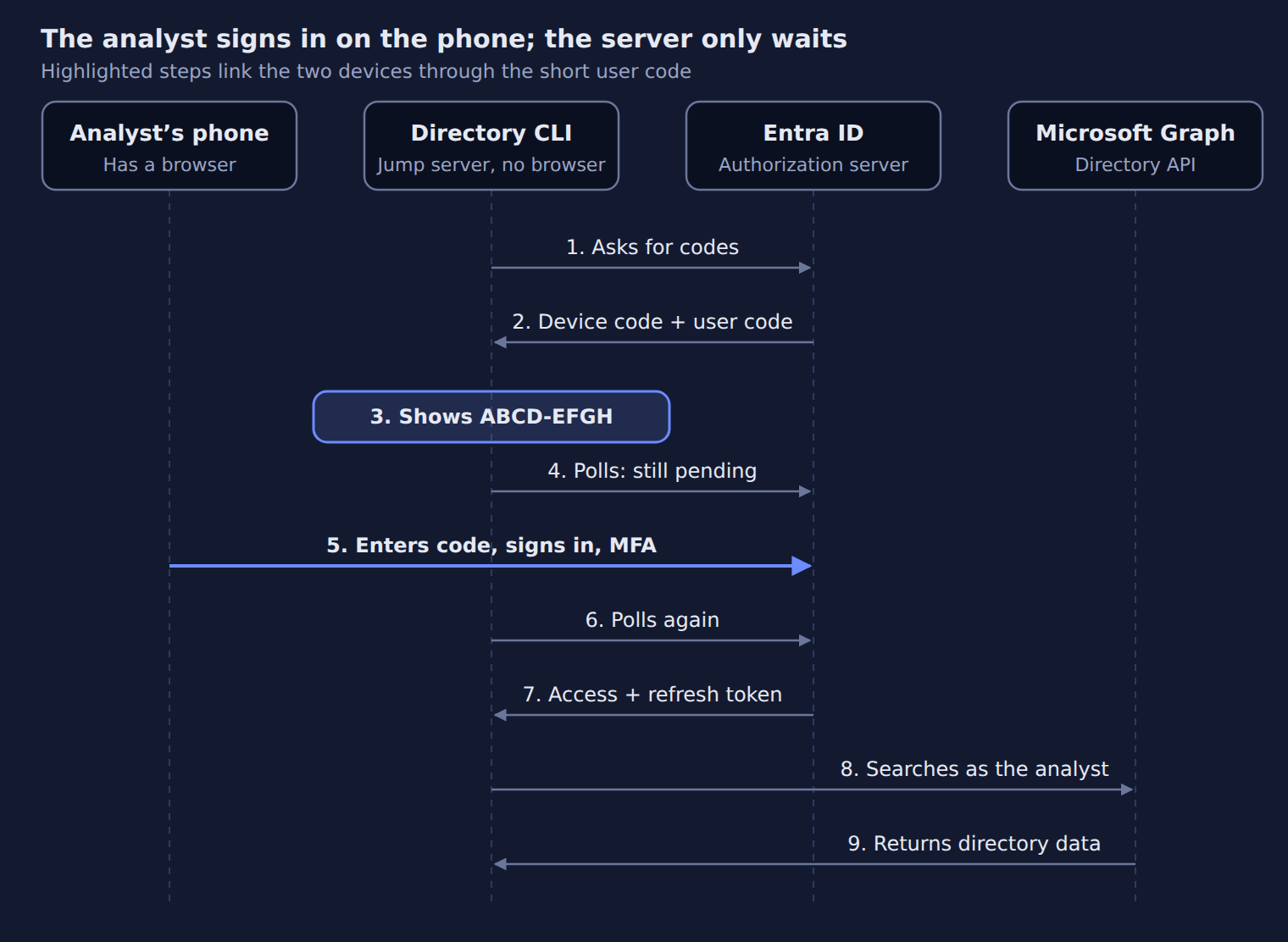
[embedded content: Device code flow · 9 steps across two devices]
- Asks for codes. The tool sends its client ID and the scopes it wants to Entra ID’s
/devicecodeendpoint. - Device code + user code. Entra ID returns a long device code for the tool to keep, a short user code for the person, the address
https://microsoft.com/devicelogin, an expiry of about 15 minutes and a polling interval. - Shows ABCD-EFGH. The tool tells the analyst where to go and which code to type.
- Polls: still pending. The tool starts asking the
/tokenendpoint every few seconds, sending its device code. Entra ID answers authorization pending. - Enters code, signs in, MFA. On the phone, the analyst opens the address, enters the code, signs in with MFA and approves the requested scopes.
- Polls again. The tool’s next check arrives after sign-in has finished.
- Access + refresh token. Entra ID returns a delegated access token for the analyst, and a refresh token because the tool asked for
offline_access. - Searches as the analyst. The tool calls Microsoft Graph with the token.
- Returns directory data. Graph returns only what the analyst is allowed to see.
Compared with Part 2, there is no redirect URI and no code in a browser address bar. The device code never leaves the server, and the user code is useless without it.
Design decisions before you build
| Decision | Choice | Why |
|---|---|---|
| App registration | New app: Contoso Directory CLI | Keeps the CLI’s settings apart from the web directory and the hygiene job |
| Client type | Public client | A tool on a shared server cannot keep a secret safe |
| Key setting | Allow public client flows = Yes | Entra ID refuses the device code flow for an app until this is on |
| Redirect URI | None | Nothing is redirected: the tool polls instead |
| Permissions | Delegated: User.Read, User.ReadBasic.All | The tool acts as the analyst, so it can never see more than they can |
| Consent | User consent is enough | Both scopes are low risk; sensitive ones would still need an admin |
| Refresh token | Yes, request offline_access | Analysts are not asked to sign in for every command |
| Who may use it | Restricted with Conditional Access | Limits the phishing risk described next |
Notice what did not change from Part 2: the permissions are delegated, the token carries scp and the user’s upn, and the golden rule still holds. The app’s access is the overlap of its scopes and the person’s own rights.
The risk: device code phishing
The feature that makes this flow useful also makes it easy to abuse: the device that waits for the token does not have to be anywhere near the person who signs in.
An attacker uses it like this:
- The attacker starts the device code flow on their own laptop and gets a user code.
- They send it to a victim: “To open the shared contract, go to microsoft.com/devicelogin and enter ABCD-EFGH.”
- The page is genuinely Microsoft’s, so it looks safe. The victim signs in, passes MFA and approves.
- The attacker’s laptop, still polling, receives the victim’s tokens, including a refresh token.
MFA does not stop this, because the victim completed MFA themselves. The defences are about who may use the flow at all.
Defence 1: block it with Conditional Access
Entra admin center → Conditional Access → new policy:
- Users: all users, excluding a group such as
Device code allowed(Contoso’s IAM analysts). - Target resources: all resources.
- Conditions → Authentication flows → Device code flow.
- Grant: Block access.
Start in Report-only mode, check the sign-in logs for who actually uses the flow, then switch it on. A tighter option allows it only from the jump server’s network location.
Defence 2: teach one simple rule
Only enter a code that you started yourself, on a device in front of you. Never enter a code that arrived by email, chat or phone call. The lab script prints this warning next to every code.
Defence 3: watch for it
In the Sign-in logs, these sign-ins show Authentication protocol: Device code. Device code sign-ins from users who never use command-line tools deserve a closer look.
Quick setup in Entra ID
Setup takes about five minutes. You need an Entra ID tenant, a phone or second computer with a browser, and PowerShell 7. Conditional Access for the security test needs Entra ID P1 or P2.
Step 1. Register the app
- Entra admin center → App registrations → New registration.
- Name:
Contoso Directory CLI. Supported account types: Accounts in this organizational directory only. - Leave Redirect URI empty.
- From the Overview page, note the Application (client) ID and Directory (tenant) ID.
Step 2. Allow public client flows
Authentication → Advanced settings → Allow public client flows → Yes → Save.
This one switch is what lets the app use the device code flow. Without it, the token request fails.
Step 3. Add delegated permissions
API permissions → Microsoft Graph → Delegated permissions: add User.Read and User.ReadBasic.All. Admin consent is not required; each analyst consents on first sign-in.
Step 4. Get the script
Download Invoke-DeviceCodeFlow.ps1. The test users from Part 2 give the search something to find.
Run it: PowerShell, step by step
.\Invoke-DeviceCodeFlow.ps1 -TenantId <tenant-id> -ClientId <client-id>
The console stops and shows a code. Pick up your phone, open the address it shows, enter the code and sign in as Divya. Watch the console carry on by itself.
What each step does
| Step | What happens | What you see |
|---|---|---|
| 1. Ask for codes | Posts the client ID and scopes to /devicecode | Device code (shortened), user code, address, expiry, polling interval |
| 2. Show the code | Prints where to go and what to enter | The instructions, the phishing warning, and the code copied to the clipboard |
| 3. Poll | Asks /token every few seconds with the device code | waiting (authorization_pending) until you finish on the phone |
| 4. Inspect | Shows what came back and decodes the access token | Access and refresh token; scp and upn show it is you |
| 5. Use it | Calls Graph /me and searches the directory | Divya’s name and the search results |
The two requests at the heart of the flow
Step 1 asks for the codes:
$dc = Invoke-RestMethod -Method Post -Uri "$authority/devicecode" -Body @{
  client_id = $ClientId
  scope     = "User.Read User.ReadBasic.All offline_access"
}
Step 3 repeats this until it succeeds:
Invoke-RestMethod -Method Post -Uri "$authority/token" -Body @{
  grant_type  = "urn:ietf:params:oauth:grant-type:device_code"
  client_id   = $ClientId
  device_code = $dc.device_code
}
No secret, no redirect URI and no PKCE. The device code itself is the proof that this tool started the request.
What the polling answers mean
Answer from /token | Meaning | What the tool does |
|---|---|---|
authorization_pending | The person has not finished yet | Waits one interval and asks again |
slow_down | Asking too often | Waits 5 seconds longer each time |
authorization_declined | The person pressed No or Cancel | Stops |
expired_token | Nobody signed in within about 15 minutes | Stops; run it again |
| Tokens returned | Sign-in complete | Continues to step 4 |
Reading the badge
| Claim | Example | Meaning |
|---|---|---|
aud | 00000003-0000-0000-c000-000000000000 | The badge is for Microsoft Graph |
scp | User.Read User.ReadBasic.All | Delegated scopes, as in Part 2 |
upn | divya.pillai@contoso.onmicrosoft.com | The person who signed in on the phone |
appid | The CLI’s client ID | Which app holds the badge |
This is a normal delegated token. Nothing in it says “device code”: the difference is only in how it was obtained. The sign-in logs record that part.
Five experiments worth trying
- Decline on the phone. The script stops with declined.
- Do nothing for 15 minutes. The code expires.
- Set Allow public client flows back to No. The token request fails; switch it on again afterwards.
- Block the flow for Divya with the Conditional Access policy from the risk section. She can no longer finish sign-in.
- Open Divya’s sign-in in the logs and find Authentication protocol: Device code.
Troubleshooting
| Error or symptom | Cause | Fix |
|---|---|---|
AADSTS7000218: request must contain client_assertion or client_secret | Allow public client flows is off, so Entra ID treats the app as confidential | Set it to Yes and save |
AADSTS70016 with authorization_pending | Normal: the person has not finished signing in | Nothing; the script keeps polling |
AADSTS70019, expired_token | The code was not used within about 15 minutes | Run the script again for a new code |
authorization_declined | The person pressed No or Cancel on the phone | Run again and approve |
AADSTS53003 on the phone | A Conditional Access policy blocked the sign-in | Expected if you blocked the flow; check the policy and the user’s group |
| “That code didn’t work” on the phone | A typo, an expired code, or a code from another tenant | Copy the code again, or start over |
AADSTS65001: consent missing | The person has not consented yet and could not complete consent | Sign in interactively once, or have an admin grant consent |
Graph 403 on search | Guests or restricted users cannot read the directory | Expected: the token is delegated and follows the person’s rights |
Security checklist
- Use the device code flow only where no browser is available; prefer authorization code + PKCE everywhere else.
- Enable Allow public client flows only on the apps that need it.
- Block the device code flow with Conditional Access for everyone except a named group, ideally from known locations only.
- Delegated, least-privilege scopes; the tool never needs more than the person using it.
- Teach users: only enter a code you started yourself.
- Review sign-ins with Authentication protocol: Device code for unexpected users or places.
- Treat refresh tokens on shared servers as sensitive; clear them when an analyst leaves the team.
Remember
- Device code is for a person on a device without a browser: sign in on the phone, the device waits.
- Two codes: the user code for the person to type, the device code kept by the tool.
- The tool polls until the person finishes, declines, or the code expires.
- The token is delegated, exactly like Part 2: the tool can do no more than the person.
- Its risk is phishing, and the fix is Conditional Access, not MFA.
Next in this series
So far each app called an API directly. What happens when that API needs to call another API, still on behalf of the same person? The next part covers the on-behalf-of flow, where a badge is exchanged for a new one further down the chain.