OAuth 2.0 in Entra ID · Part 5 of 7
Leave request with OpenID Connect, OAuth and on-behalf-of
This part builds a complete, modern business flow from start to finish: an employee applies for leave in a web portal, and the request is routed to their manager automatically. It uses only OAuth-family standards: OpenID Connect to sign the employee in, OAuth to call the company API, and on-behalf-of to let that API read Microsoft Graph as the same employee.
It is the design most new enterprise apps should follow. One sign-in returns everything the portal needs, every system acts as the real person, and no system ever sees a password.
The article is laid out the way a real project runs:
- Requirement: what the business asked for.
- Design: the components, the decisions and the flow.
- Implementation: the Entra ID configuration and the requests in code.
- Testing: a full simulation you run in your own tenant, with test cases and troubleshooting.
1. Requirement
Contoso is replacing its old leave spreadsheet with a Leave portal. HR writes the request:
Employees sign in with their Contoso account, choose dates and submit a leave request. The request must go to their own manager for approval, using the reporting lines already maintained in Entra ID. The leave rules must live in a Leave API, so a Teams app and a mobile app can reuse them later.
Functional requirements
| ID | Requirement |
|---|---|
| F1 | Employees sign in to the Leave portal with their Contoso account |
| F2 | The portal shows the signed-in employee’s name |
| F3 | Employees submit leave with start date, end date and type |
| F4 | The Leave API looks up the employee’s manager in Microsoft Graph |
| F5 | The request is routed to that manager for approval |
Non-functional requirements
| ID | Requirement |
|---|---|
| N1 | Single sign-on: one sign-in, with MFA and Conditional Access enforced by Entra ID |
| N2 | No passwords handled by the portal or the API |
| N3 | Acts as the employee: the API reads only what the employee is allowed to see; no tenant-wide permissions |
| N4 | Auditable: sign-in logs show the real person at every step |
| N5 | Only assigned employees can use the portal |
| N6 | Least privilege: each app gets only the permissions it needs |
The example follows Ravi Kumar, IAM Team Lead, whose manager is Vikram Menon, Head of IT.
2. Design
Solution overview
Four components take part. Two are Contoso’s own, two are Microsoft’s.
| Component | What it does | Identity standard it uses | In Entra ID |
|---|---|---|---|
| Leave portal | Web app the employee uses | OpenID Connect to sign in; OAuth to call the Leave API | App registration, confidential client (Web) |
| Leave API | Holds the leave rules; routes requests | Accepts OAuth tokens; uses on-behalf-of to call Graph | App registration that exposes a scope |
| Entra ID | Signs people in and issues every token | Authorization server for all three standards | Your tenant |
| Microsoft Graph | Knows each person’s manager | Accepts OAuth tokens | Built-in Microsoft API |
The chain is always portal → Leave API → Graph, and the same person, Ravi, is carried through every hop.
Design decisions
| # | Decision | Choice | Why | Meets |
|---|---|---|---|---|
| D1 | Sign-in protocol | OpenID Connect (authorization code flow + PKCE) | One request returns an ID token for sign-in and an access token for the API, so the portal makes a single trip to Entra ID | F1, F2, N1 |
| D2 | Scopes in the sign-in request | openid profile api://<leave-api>/Leave.Submit | openid profile gives the ID token; the Leave API scope gives access token 1 in the same response | F1, F3 |
| D3 | Portal client type | Confidential (Web), with a client secret and PKCE | The code is swapped on the portal’s server, where a secret can be kept | N2 |
| D4 | How the API reaches Graph | On-behalf-of | The API acts as Ravi, so Graph applies Ravi’s rights; client credentials would read everyone | F4, N3 |
| D5 | Permissions | Delegated only: Leave.Submit on the portal, User.Read on the Leave API | Each app gets the least it needs; no application permissions in the chain | N3, N6 |
| D6 | Consent | Admin consent granted in advance for both | Users never see a consent screen; on-behalf-of cannot show one | N1 |
| D7 | Who may use it | Assignment required on the portal | Only intended employees can sign in | N5 |
| D8 | Token checks | Portal validates the ID token (audience, nonce, state); API validates access token 1 (audience, scope) | Each system accepts only tokens made for it | N2, N3 |
| D9 | Credentials | Client secrets in the lab; certificates or managed identities in production | Secrets are quick to set up; certificates cannot be copied out | N2 |
The flow, step by step
Ravi sees one Entra ID page. Everything else happens between systems in about a second.
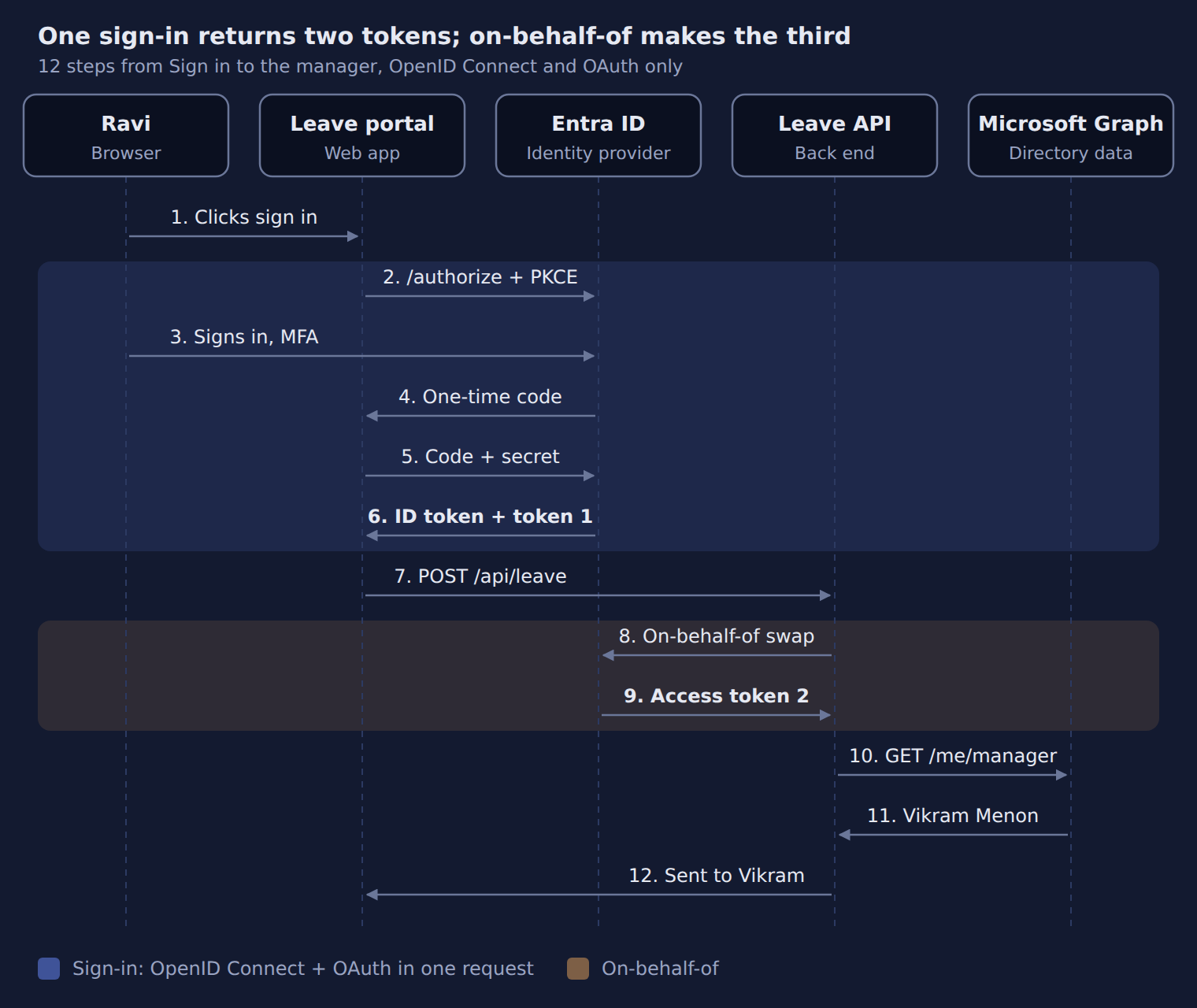
[embedded content: Leave request with OpenID Connect, OAuth and on-behalf-of · 12 steps]
- Clicks sign in. Ravi opens the Leave portal.
- /authorize + PKCE. The portal sends the browser to Entra ID asking for
openid profileandLeave.Submit, with a PKCE challenge, astateand anonce. - Signs in, MFA. Entra ID checks Ravi’s password, MFA, Conditional Access and that he is assigned to the portal.
- One-time code. Entra ID redirects back to the portal with a short-lived code.
- Code + secret. The portal’s server swaps the code at
/token, proving itself with its secret and the PKCE verifier. - ID token + token 1. One response carries both: the ID token tells the portal who signed in; access token 1 lets it call the Leave API.
- POST /api/leave. The portal submits the request with access token 1.
- On-behalf-of swap. The Leave API checks token 1, then sends it to Entra ID with its own secret, asking for a Graph token for Ravi.
- Access token 2. Entra ID returns a token for Graph, still in Ravi’s name, held by the Leave API.
- GET /me/manager. The Leave API asks Graph who Ravi’s manager is.
- Vikram Menon. Graph answers using Ravi’s own rights.
- Sent to Vikram. The Leave API routes the request and the portal shows the confirmation.
The three tokens
The flow creates one ID token and two access tokens. Each has one job and one audience.
| ID token | Access token 1 | Access token 2 | |
|---|---|---|---|
| Standard | OpenID Connect | OAuth | OAuth (on-behalf-of) |
| Issued at | Step 6 | Step 6 | Step 9 |
| Held by | Leave portal | Leave portal | Leave API |
Audience (aud) | The Leave portal itself | Leave API | Microsoft Graph |
| Answers | Who signed in? | May the portal call the Leave API for Ravi? | May the Leave API read Graph for Ravi? |
| Key claims | name, preferred_username, nonce | scp: Leave.Submit, upn | scp: User.Read, upn |
Carrier (appid / azp) | Leave portal | Leave portal | Leave API |
| Ever sent to an API? | Never | Only to the Leave API | Only to Graph |
Three rules come out of this table:
- The ID token is for the app, never for an API. The portal reads it to know who signed in, then keeps it to itself.
- Each access token opens exactly one door. Token 1 works at the Leave API only; token 2 works at Graph only.
- The person never changes. All three tokens describe Ravi. Only the audience and the carrier change.
The lab requests no offline_access, so there is no refresh token. A production portal would add it, so access token 1 can be renewed every hour without a new sign-in.
3. Implementation
Part A: configure Entra ID
About 15 minutes. You need an Entra ID tenant, an account that can grant admin consent, PowerShell 7, and the Contoso test users from Part 2, where Ravi reports to Vikram.
Create the Leave API first, because the portal needs its scope.
App 1: Contoso Leave API
- App registrations → New registration:
Contoso Leave API, Accounts in this organizational directory only, no redirect URI. Note the Application (client) ID. - Expose an API → Application ID URI → Add → accept
api://<client-id>→ Save. - Add a scope:
| Field | Value |
|---|---|
| Scope name | Leave.Submit |
| Who can consent? | Admins and users |
| Admin consent display name | Submit leave requests |
| Admin consent description | Allows the app to submit leave requests on behalf of the signed-in user. |
| User consent display name | Submit your leave requests |
| State | Enabled |
- API permissions → Add a permission → Microsoft Graph → Delegated →
User.Read→ Grant admin consent. - Certificates & secrets → New client secret (90 days). Copy the Value now; it is shown only once.
App 2: Contoso Leave Portal
- App registrations → New registration:
Contoso Leave Portal, single tenant.- Redirect URI: platform Web,
http://localhost:5000/oauth/callback. Note the Application (client) ID.
- Redirect URI: platform Web,
- Certificates & secrets → New client secret. Copy the Value.
- API permissions → Add a permission → APIs my organization uses → search Contoso Leave API → Delegated →
Leave.Submit→ Add permissions → Grant admin consent.User.Readon Graph is added by default; leave it.openidandprofileneed no setup.
- Enterprise applications → Contoso Leave Portal → Properties → Assignment required? → Yes → Save.
- Users and groups → Add user/group → assign Ravi Kumar and Divya Pillai.
If Contoso Leave API is missing under My APIs, use APIs my organization uses: My APIs lists only apps you own.
What you should have
| App | Exposes | Has permission to | Consent | Secret |
|---|---|---|---|---|
| Contoso Leave API | Leave.Submit | Graph User.Read (delegated) | Granted | Yes |
| Contoso Leave Portal | Nothing | Leave API Leave.Submit (delegated) | Granted | Yes |
Part B: the requests in code
The whole flow is four HTTP requests to Entra ID and Graph. These snippets come from the lab script; a real app would use a library such as MSAL or Microsoft.Identity.Web, which sends exactly the same requests.
1. Send the browser to sign in (portal)
$query = @{
  client_id             = $PortalClientId
  response_type         = "code"
  redirect_uri          = "http://localhost:5000/oauth/callback"
  scope                 = "openid profile api://$LeaveApiClientId/Leave.Submit"
  state                 = $state            # random, checked on return (stops CSRF)
  nonce                 = $nonce            # random, must come back inside the ID token
  code_challenge        = $challenge        # SHA-256 of a secret verifier (PKCE)
  code_challenge_method = "S256"
}
# redirect to https://login.microsoftonline.com/<tenant>/oauth2/v2.0/authorize?<query>
2. Swap the code for tokens (portal server)
$tokens = Invoke-RestMethod -Method Post -Uri "$authority/oauth2/v2.0/token" -Body @{
  client_id     = $PortalClientId
  client_secret = $portalSecret
  grant_type    = "authorization_code"
  code          = $code
  redirect_uri  = "http://localhost:5000/oauth/callback"
  code_verifier = $verifier
  scope         = "openid profile api://$LeaveApiClientId/Leave.Submit"
}
# $tokens.id_token     -> who signed in (check aud = portal, nonce matches)
# $tokens.access_token -> access token 1, for the Leave API
3. Swap access token 1 for a Graph token (Leave API)
$graphToken = Invoke-RestMethod -Method Post -Uri "$authority/oauth2/v2.0/token" -Body @{
  grant_type          = "urn:ietf:params:oauth:grant-type:jwt-bearer"
  client_id           = $LeaveApiClientId
  client_secret       = $apiSecret
  assertion           = $accessToken1
  scope               = "https://graph.microsoft.com/User.Read"
  requested_token_use = "on_behalf_of"
}
Before this call, the Leave API checks access token 1: signature, expiry, aud = Leave API and scp contains Leave.Submit.
4. Ask Graph for the manager (Leave API)
$manager = Invoke-RestMethod -Uri "https://graph.microsoft.com/v1.0/me/manager?`$select=displayName,jobTitle" `
  -Headers @{ Authorization = "Bearer $($graphToken.access_token)" }
# -> Vikram Menon, Head of IT
/me means Ravi here, because access token 2 carries Ravi’s identity. That is on-behalf-of doing its job.
Part C: run the simulation
The lab script Start-LeaveRequestOAuthSimulation.ps1 starts a small website on http://localhost:5000 that plays both the Leave portal and the Leave API, and records every step.
.\Start-LeaveRequestOAuthSimulation.ps1 -TenantId <tenant-id> -PortalClientId <leave-portal-app-id> -LeaveApiClientId <leave-api-app-id>
- Paste the two secrets when asked: the Leave portal’s first, then the Leave API’s.
- A browser opens the Leave portal. Copy the address into a private window.
- Click Sign in with Contoso and sign in as Ravi.
You see the Entra ID sign-in page once. A second later the portal shows:
Leave request submitted. 3 to 5 November 2026, Annual leave. Sent to Vikram Menon for approval.
Below it, the What happened inside timeline lists every step. The console shows the same lines, colour-coded: white for the browser, cyan for the portal, yellow for Entra ID, magenta for the Leave API, green for Graph.
Reading the timeline
| Timeline line | What to notice |
|---|---|
| Sends the browser to Entra ID’s /authorize endpoint | One scope string asks for sign-in and API access |
| Signed Ravi in … returned a one-time authorization code | MFA and Conditional Access happen here, on Entra ID’s page |
| Swaps the code … Received: ID token + access token 1 | Both arrive in one response |
| Reads the ID token and creates its session | aud is the portal; nonce matches: True |
| Keeps access token 1 for the Leave API | aud is the Leave API; scp is Leave.Submit |
| Checks the incoming token is meant for it | The Leave API refuses tokens made for anyone else |
| Issues a new token for Microsoft Graph | Same upn, new aud, appid is now the Leave API |
| Answers ‘who is my manager?’ | Vikram Menon, using Ravi’s own rights |
Then open Sign-in logs in the Entra admin center and filter by Ravi: you will find his interactive sign-in to the Contoso Leave Portal, and a non-interactive sign-in for the Contoso Leave API from the on-behalf-of step.
4. Testing
Run each case in a fresh private window. Together they prove every requirement.
| # | Test | How | Expected result | Proves |
|---|---|---|---|---|
| T1 | Happy path | Sign in as Ravi | Request sent to Vikram Menon | F1–F5 |
| T2 | Different employee | Sign in as Divya | Request sent to Ravi Kumar, her manager | F4, N3 |
| T3 | Single sign-in | Watch the browser during T1 | One Entra ID page, no consent screen | N1, D6 |
| T4 | Unassigned user | Remove Divya from Users and groups, sign in as her | Sign-in refused with AADSTS50105 | N5 |
| T5 | No consent on the portal | Revoke admin consent for Leave.Submit | A consent screen appears, or Need admin approval | D6 |
| T6 | No consent on the API | Revoke admin consent for User.Read on the Leave API | On-behalf-of step fails with AADSTS65001 | D6 |
| T7 | Wrong audience | In the script, change the scope to User.Read only | Leave API rejects the token: audience is not the Leave API | D8 |
| T8 | Audit | Open Sign-in logs after T1 | Ravi’s sign-in to the portal and the on-behalf-of sign-in to the Leave API | N4 |
Restore every change after its test, especially assignment and consent.
Troubleshooting
| Error or symptom | Step | Cause | Fix |
|---|---|---|---|
AADSTS50011: reply URL does not match | Sign-in | Redirect URI missing, mistyped, or under the wrong platform | Add http://localhost:5000/oauth/callback under Web exactly |
AADSTS50105: user not assigned | Sign-in | Assignment required and the user is not assigned | Assign the user under Users and groups |
AADSTS500011: resource principal not found | Sign-in | Leave API has no Application ID URI, or wrong -LeaveApiClientId | Set the URI under Expose an API; check the ID |
AADSTS65001 or Need admin approval | Sign-in | Admin consent for Leave.Submit not granted | Grant admin consent on the portal’s API permissions |
AADSTS7000215: invalid client secret | Code swap or OBO | Secret ID copied instead of Value, or secrets entered in the wrong order | Copy the Value; enter the portal secret first, then the API secret |
AADSTS7000218: needs client_secret | Code swap | The redirect URI is under Web but no secret was sent | Use the portal secret; check it was pasted |
AADSTS65001 | On-behalf-of | Leave API not consented to read Graph | Grant admin consent for User.Read on the Leave API |
AADSTS50013: assertion audience mismatch | On-behalf-of | Access token 1 was not issued for the Leave API | The sign-in scope must include api://<leave-api>/Leave.Submit |
| Manager shows no manager set | Graph | The user has no manager in Entra ID | Set the manager, or run the Part 2 test-user script |
| Script stops: port in use | Start | Another program uses port 5000 | Run with -Port 5050 and change the redirect URI to match |
5. Taking it to production
The lab proves the flow. A production build keeps the same requests and adds these:
- Use MSAL in the portal and Microsoft.Identity.Web (or your platform’s equivalent) in the Leave API instead of hand-built requests; they validate signatures, cache tokens and handle errors.
- HTTPS redirect URIs on your real domain; remove
localhostURIs. - Certificates or managed identities instead of client secrets; secrets, if any, kept in a vault.
- Add
offline_accessso the portal can renew access token 1 without a new sign-in. - Cache on-behalf-of tokens per user in the Leave API, never across users.
- Pass Conditional Access challenges from the on-behalf-of step back to the portal, so it can sign the user in again.
- Assignment required on the portal, with a group instead of individual users.
- Owners set on both app registrations, and permissions reviewed regularly.
Remember
- One sign-in, two jobs:
openid profilegives the portal an ID token; the Leave API scope gives it access token 1, in the same response. - Three tokens: an ID token for the portal, access token 1 for the Leave API, access token 2 for Graph.
- The ID token never leaves the portal; each access token opens exactly one door.
- On-behalf-of lets the Leave API reach Graph as Ravi, so Graph applies Ravi’s rights.
- Delegated permissions and admin consent keep the flow least-privilege and free of extra prompts.
Next
This part used the ID token without looking closely at it. The next series opens it up: OpenID Connect in detail, with every claim in the ID token, how apps should validate it, and how sign-out works across apps.